How to Install IPTV on a Firestick (2026 Step-by-Step)
The cheapest way to turn any TV into an IPTV TV, in five steps.
No extra box needed on most recent Samsung and LG TVs. Here is how.
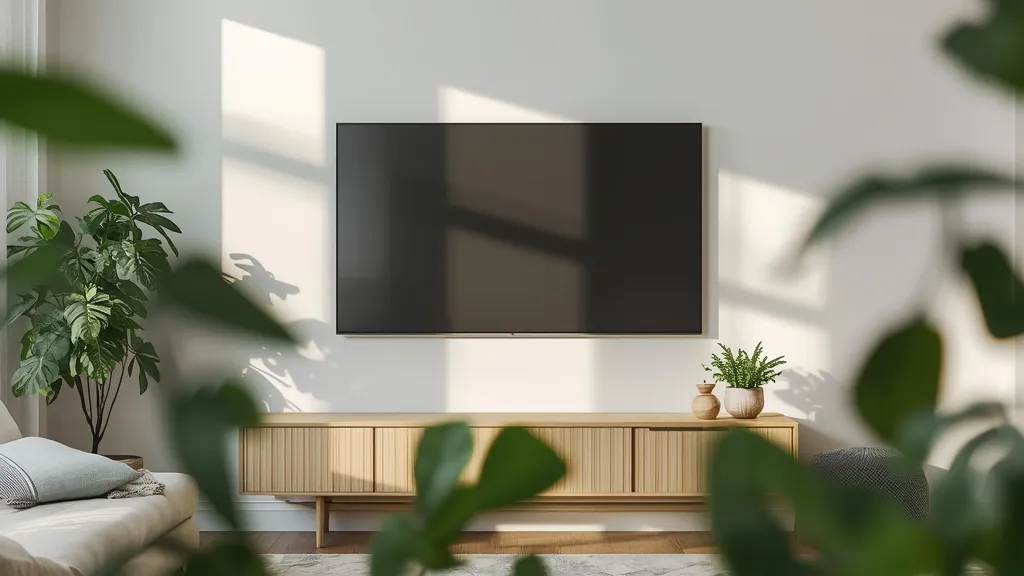
Most Samsung and LG Smart TVs made in the last five years can run IPTV directly: you install a compatible player app from the TV's own store, sign in with your login, and you're watching without any extra box.
Open Smart Hub, search the Apps section for an IPTV player that supports Xtream Codes or M3U, install it and enter your login. Samsung's own US support site lists which models run which Tizen version if an app won't install.
Open the LG Content Store, install a compatible player and sign in the same way. LG documents app installation in its customer support center.
Smart TV processors age quickly. If channels switch slowly or 4K sports stutter, a streaming stick usually fixes it for a modest one-off price; our Firestick install guide takes ten minutes.
All other devices are covered in the setup guide.
The cheapest way to turn any TV into an IPTV TV, in five steps.
HD, Full HD and 4K bandwidth per screen, and how to size it for a whole house.
Nine checks, from the 30-second ones to the router settings, in the order we use them.
No credit card, no commitment. Check your local channels, your team and the picture quality on your own TV first.