What Internet Speed Do You Need for IPTV?
HD, Full HD and 4K bandwidth per screen, and how to size it for a whole house.
Nine checks, from the 30-second ones to the router settings, in the order we use them.
IPTV buffering is almost always a home-network problem, not a server problem: weak Wi-Fi, a busy connection or an app with a full cache. Work through the fixes below in order; most viewers are back to a smooth picture after the first three.
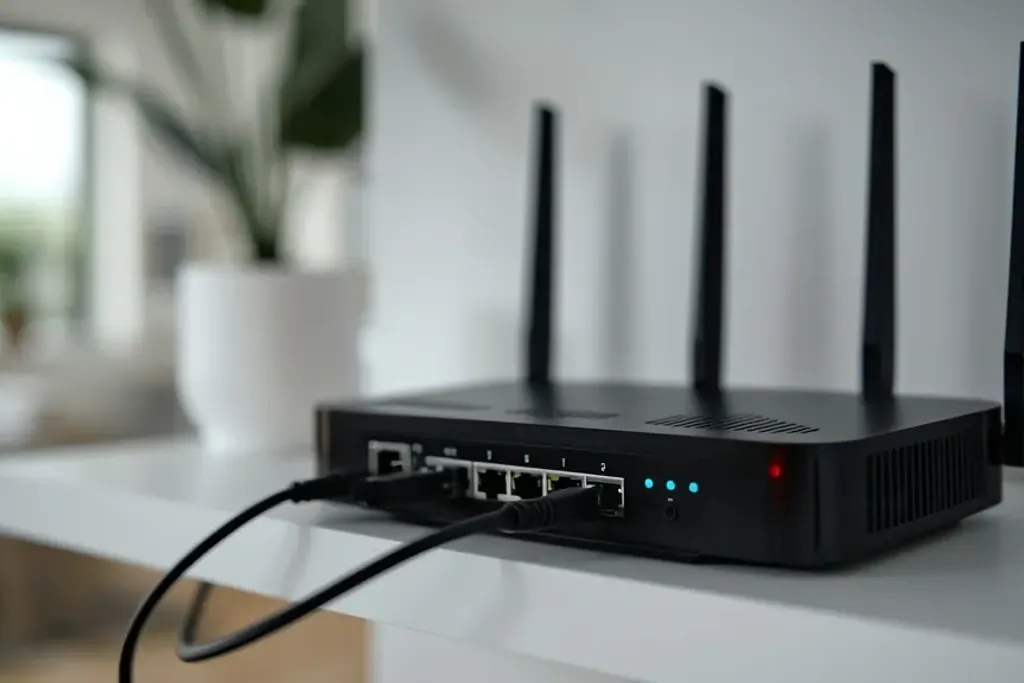
Unplug both for 30 seconds. It clears memory leaks in the TV app and forces the router to renegotiate its connection with your ISP. It sounds basic, and it fixes more tickets than anything else.
A cable beats Wi-Fi every time. If you can't run one, a mesh point or a powerline adapter near the TV is the next best thing. On a Firestick, the Ethernet adapter alone often ends the problem; see our Firestick IPTV install guide for the hardware tips.
Run a speed test on the TV itself, not on your phone next to the router. The FCC's broadband speed guide is a good reference for what different uses need. For IPTV, plan on roughly 10 Mbps for HD and 25 Mbps for 4K per screen; our article on internet speed for IPTV explains the math for a whole house.
On Android TV and Fire TV: Settings, Applications, your IPTV player, Clear cache. Don't clear data unless support asks you to, or you'll have to sign in again.
If the FHD version of a channel plays smoothly but the 4K one doesn't, your line or Wi-Fi is the bottleneck, not the service.
Some ISP DNS servers resolve slowly at peak times. Switching the router or device to a public resolver such as Cloudflare 1.1.1.1 is free and takes two minutes.
If streams stutter only in the evening while speed tests look fine, your ISP may be shaping video traffic. A reputable VPN can confirm it: if buffering disappears with the VPN on, throttling was the cause.
Each plan allows a set number of screens at once. A third device on a 2-connection plan will cut one of the others off, which can look like freezing. You can add screens on the pricing page.
If a single channel freezes for everyone in the house, message support with the channel name and time. We switch it to a backup source. During big events like NFL Sundays, the team watches load in real time.
Still stuck? Our setup guide covers every device, and support answers on WhatsApp around the clock.
HD, Full HD and 4K bandwidth per screen, and how to size it for a whole house.
The cheapest way to turn any TV into an IPTV TV, in five steps.
Sunday afternoons, primetime and playoffs: what to set up before kickoff.
No credit card, no commitment. Check your local channels, your team and the picture quality on your own TV first.